Meta Description:
Boost your productivity in 2025 using Google Chrome’s built-in tools. This no-extension guide shows 9 smart features to help professionals stay focused, fast, and organized.
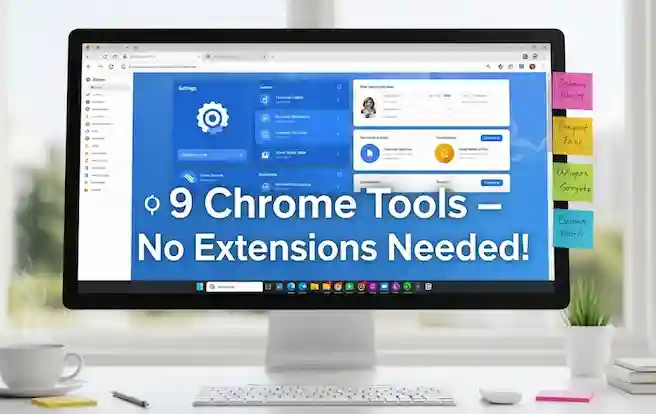
In today’s digital world, Google Chrome is more than just a browser—it’s a smart work companion. Whether you’re working remotely, managing a business, or growing a side hustle, Chrome’s built-in tools can save you time and sharpen your focus.
While browser extensions can enhance your workflow, Chrome already comes equipped with powerful native features that streamline tasks, reduce distractions, and organize your digital workspace.
In this post, you’ll explore 9 no-extension tips that can change how you work with Chrome—starting today.
🔹 Separate Work & Life with Chrome Profiles
Creating different Chrome profiles helps you keep your work and personal life apart.
Why it works:
- Keeps bookmarks, history, and passwords separate
- Avoids mixing personal apps with work tools
- Boosts focus with a clean workspace
👉 Pro tip: Use different icons or color themes to tell your profiles apart at a glance.
🔹 Use Tab Groups to Declutter Your Browser
Do you juggle multiple clients or projects? Tab Groups help you stay organized.
Benefits:
- Color-coded groups make it easy to navigate
- Label groups like “Finance” or “Marketing”
- Prevents tab overload from becoming chaos
👉 Right-click a tab → “Add tab to new group” → Name and color it.
🔹 Search Faster with Chrome’s Omnibox Shortcuts
The omnibox (address bar) does more than open websites. You can search inside apps like Google Docs or YouTube.
Examples:
- Type
docs + space + keywordto search Google Docs - Type
yt + space + video titleto search YouTube directly
This shortcut saves time and clicks—perfect for power users.
🔹 Create a Bookmark Hub for Daily Work Tools
Turn your bookmark bar into a clean dashboard.
Best practices:
- Organize your bookmarks into folders like ‘Projects’ or ‘Quick Access’
- Right-click to rename or use icon-only links
- Drag bookmarks directly into folders while browsing
👉 Bonus: You’ll reduce clutter and find your tools faster.
🔹 Keep Must-Have Tools One Click Away
Pin tabs for tools you use every day—like Gmail, Notion, Slack, or Google Calendar.
Why pinning helps:
- Pinned tabs automatically reopen with Chrome
- They take up less space
- You won’t close them by accident
👉 Right-click the tab → Select “Pin”
🔹 Speed Up Tasks with Chrome Shortcuts
Learning just a few Chrome keyboard shortcuts can make a big difference.
Must-know shortcuts:
Ctrl + T→ Open new tabCtrl + Shift + T→ Reopen last closed tabCtrl + Tab→ Switch tabsCtrl + L→ Go to the address bar
👉 Get used to 3–5 shortcuts—you’ll use them without thinking in no time.
🔹 Block Distractions with Chrome Notification Settings
Website pop-ups and alerts can kill your focus. Luckily, Chrome gives you control.
How to manage it:
- Go to Settings → Privacy and security → Site Settings → Notifications
- Allow only key tools (like Gmail or Calendar)
- Block distracting news or shopping sites
Staying focused starts with reducing digital noise.
🔹 Recover Lost Info Using Chrome History
Can’t find a page you visited yesterday? Chrome’s History is like your second brain.
How to use it:
- Go to
chrome://historyor pressCtrl + H - Search by keyword, site, or date
Great for pulling up lost reports, links, or research pages.
🔹 Never Lose an Article Again: Chrome’s Reading List
Find a great article but don’t have time to read it? Add it to your Reading List.
How it works:
- Click the bookmark icon → “Add to reading list”
- Access it from the right side of your bookmarks bar
Use it for client research, tutorials, or deep-dive reads later.
💡 Bonus: Combine Chrome Tools with Light Extensions
Want next-level productivity? Pair Chrome’s native tools with select extensions.
| Goal | Tool Combo |
|---|---|
| Tab clarity | Tab Groups + OneTab + StayFocusd |
| Writing SOPs | Bookmark Hub + Scribe + Google Docs |
| Streamlined writing | Pinned Tabs + Grammarly + Clipboard Pro |
👉 Want more? Check out our full list of beginner-friendly Chrome extensions.
🔚 Final Thoughts: Work Smarter, Not Harder
You don’t need 20 extensions or new software to stay productive. Chrome already has what you need—if you know where to look.
Start simple:
- Create a separate work profile
- Use Tab Groups for projects
- Learn 2–3 shortcuts this week
These small upgrades add up fast. Within a week, you’ll notice smoother workflows, fewer distractions, and more time saved — all without a single extension.
🔗 You May Also Like:
Category: Tech & Tools
Tags: Google Chrome, productivity, Chrome tips, no-extension tools, browser hacks
Q1. Are Chrome’s built-in tools better than extensions?
A: It depends on your needs. Built-in tools are safer and require no installation, but some extensions offer deeper features.
Q2. Can I use Chrome’s productivity features on mobile?
A: Some features like syncing tabs, history, and profiles work across mobile and desktop, but tools like Tab Groups are desktop-only.
Q3. Do I need a Google account to use these features?
A: Yes, a Google account is needed to fully access features like Chrome profiles, bookmarks, history sync, and password manager.